VPN Installation for GPU Cloud Access – For Windows Users
Korea University's GPU Cloud requires VPN access using the Tailscale client. However, instead of using Tailscale’s public servers, a custom VPN server is used specifically for GPU Cloud. You must configure the login server address accordingly.
This document provides installation instructions for Windows. For macOS users, please refer to the macOS guide For other operating systems, see the Tailscale download page
Tailscale
Installation
- Visit the Tailscale Downlads Page
- Download the installer for Windows.
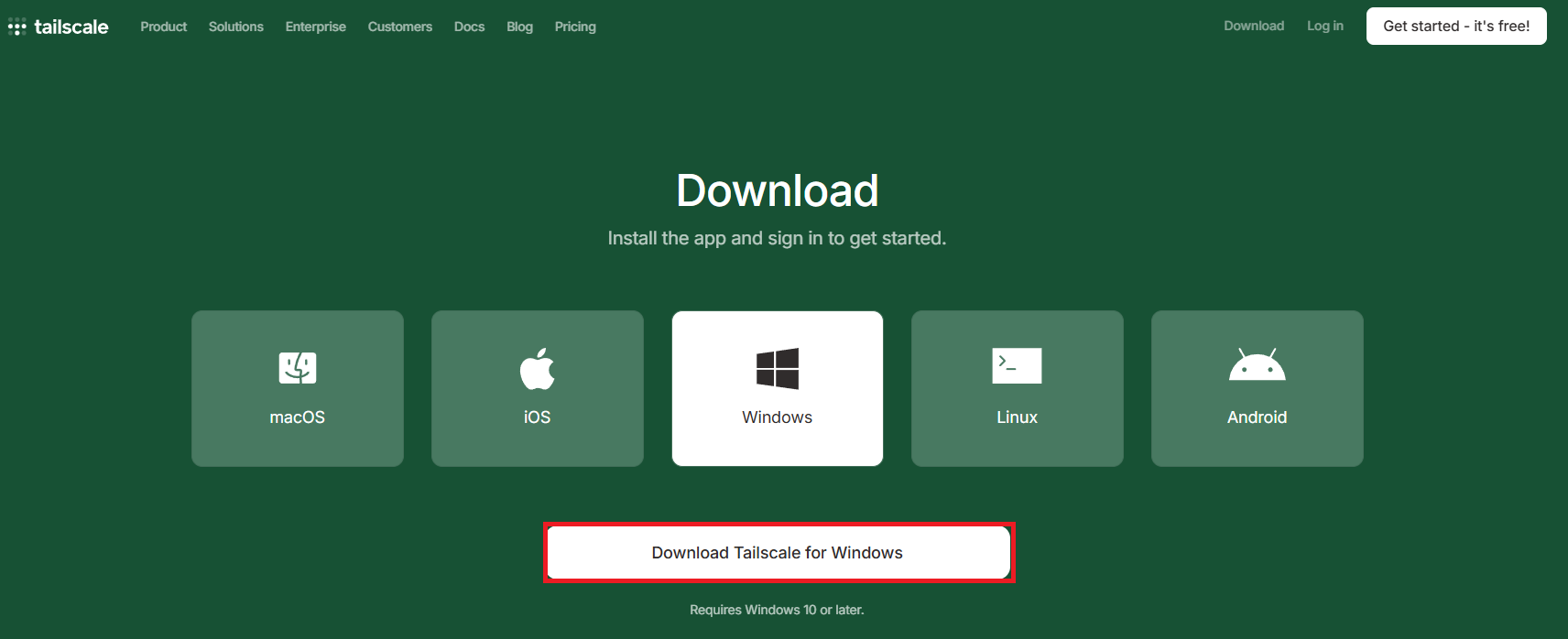
- Run the downloaded installation file to complete the setup.
Verify Installation
- Open PowerShell or Command Prompt, and enter the following command to verify that Tailscale is properly installed:
tailscale version
VPN Login and Connection
Initial Login Setup
- In PowerShell or Command Prompt, run the following command:
tailscale login --login-server=https://gpuvpn.korea.ac.kr --accept-routes
- You should see a screen like this:

- Your default browser will automatically open the Microsoft login page. Log in using your Korea University account.
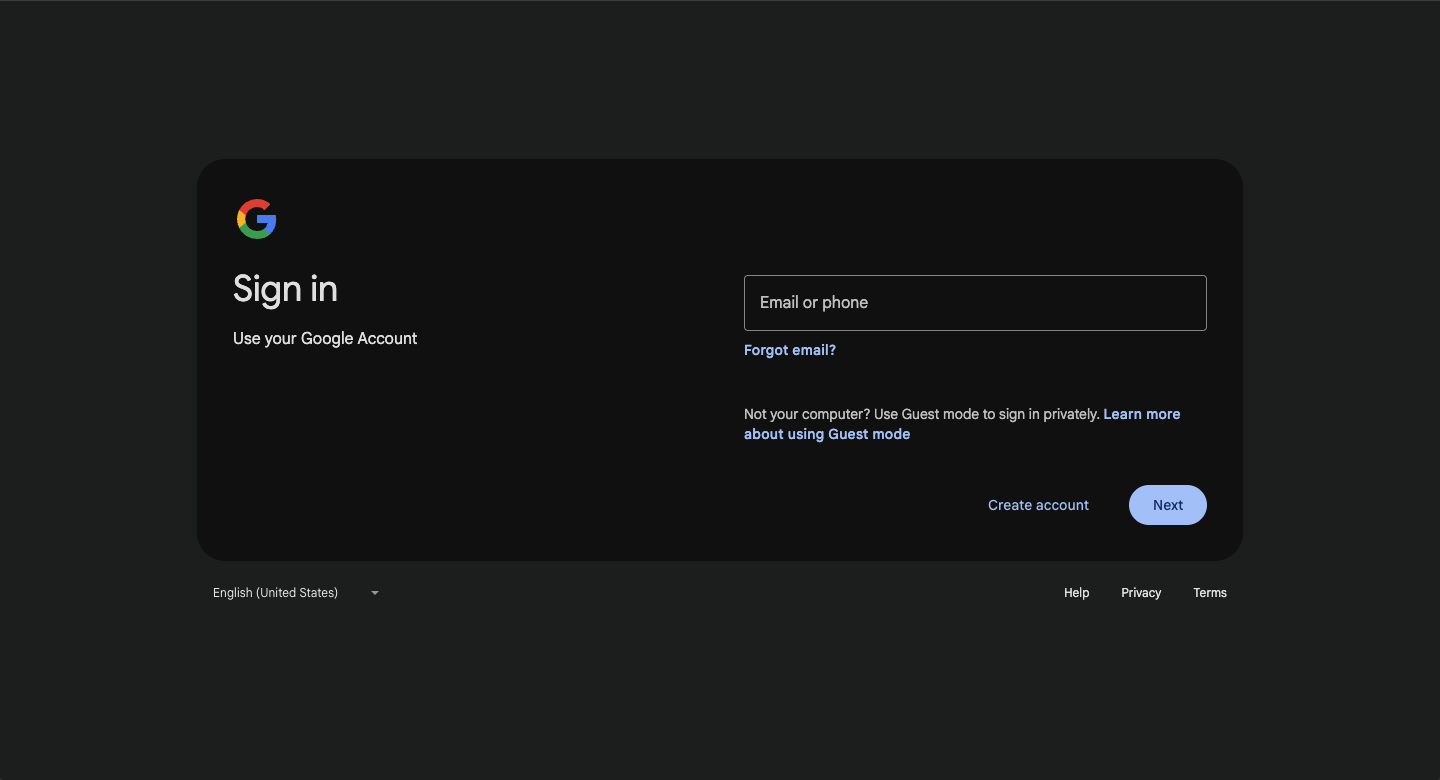
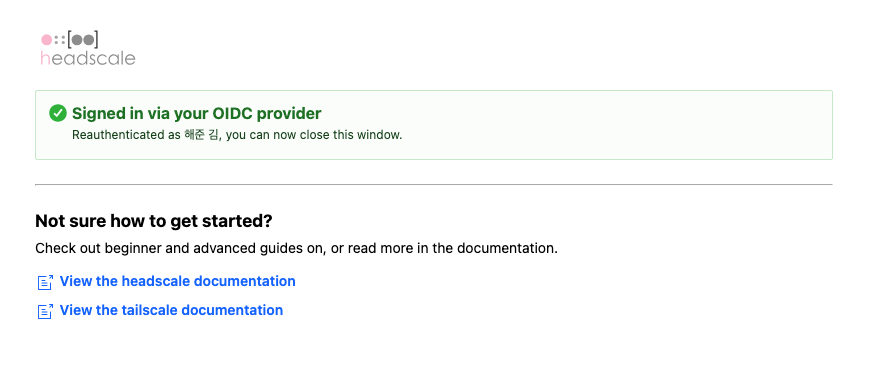
- Once the login is successful, you will see a confirmation screen like this:
Make sure the URL begins with
https://gpuvpn.korea.ac.kr/oidc/. It may take several seconds for the login page to fully load.
⚠️ (주의) - If you run tailscale up directly without the proper login command, you may see a screen like the one below. This will not allow you to connect to Korea University’s GPU Cloud.
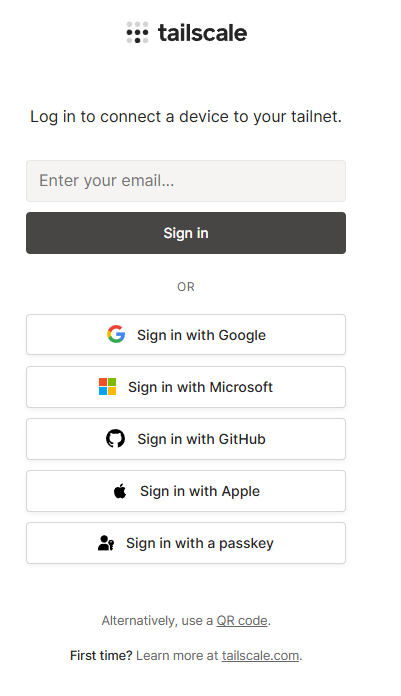
Always run
tailscale login --login-server=https://gpuvpn.korea.ac.kr --accept-routes
to correctly authenticate and connect to the GPU VPN.
Managing VPN Connection
tailscale status- View connection status, connected devices, and their IP addresses.tailscale down- Disconnect from the VPN.
If VPN Connection Fails
- Run
tailscale downto disconnect. - Re-run the login command::
tailscale login --login-server=https://gpuvpn.korea.ac.kr --accept-routes