VPN Installation for GPU Cloud Access – For macOS Users
Korea University's GPU Cloud requires VPN access using the Tailscale client. However, instead of using Tailscale’s public server, a dedicated VPN server for GPU Cloud is used, so you must configure the correct login server address.
This document explains how to install and set up the VPN on macOS. For Windows users, please refer to the Windows Guide For other operating systems, see the Tailscale download page.
Tailscale
Installation
Tailscale can be installed in several ways depending on user preference. You may choose from one of the following methods:
1. Install via App Store
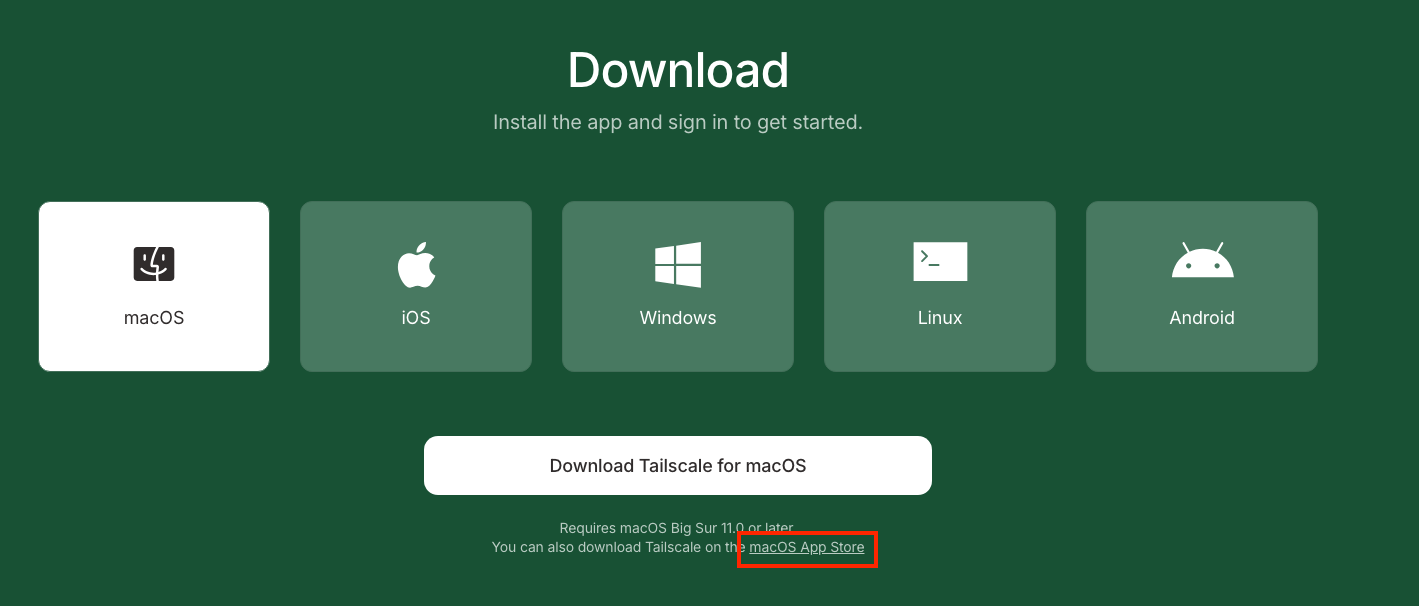
- Visit the Tailscale Downloads Page, and click macOS App Store to install.
2. Install via Homebrew
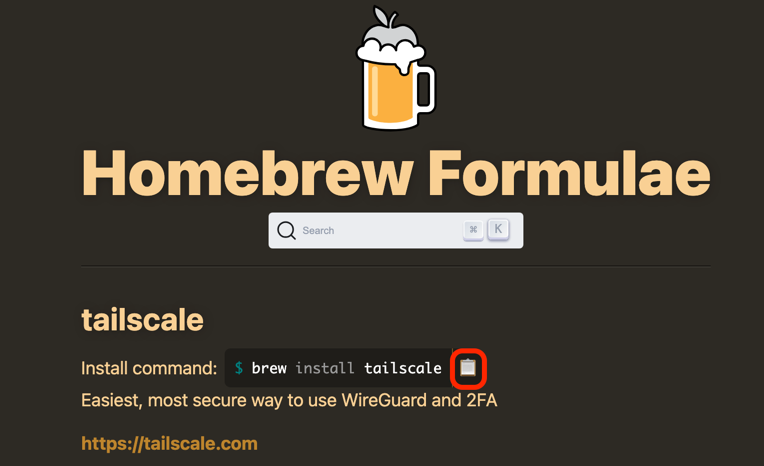
- Visit the brew search for
tailscale, and run the command in Terminal to install the package.
3. Manual Download and Installation
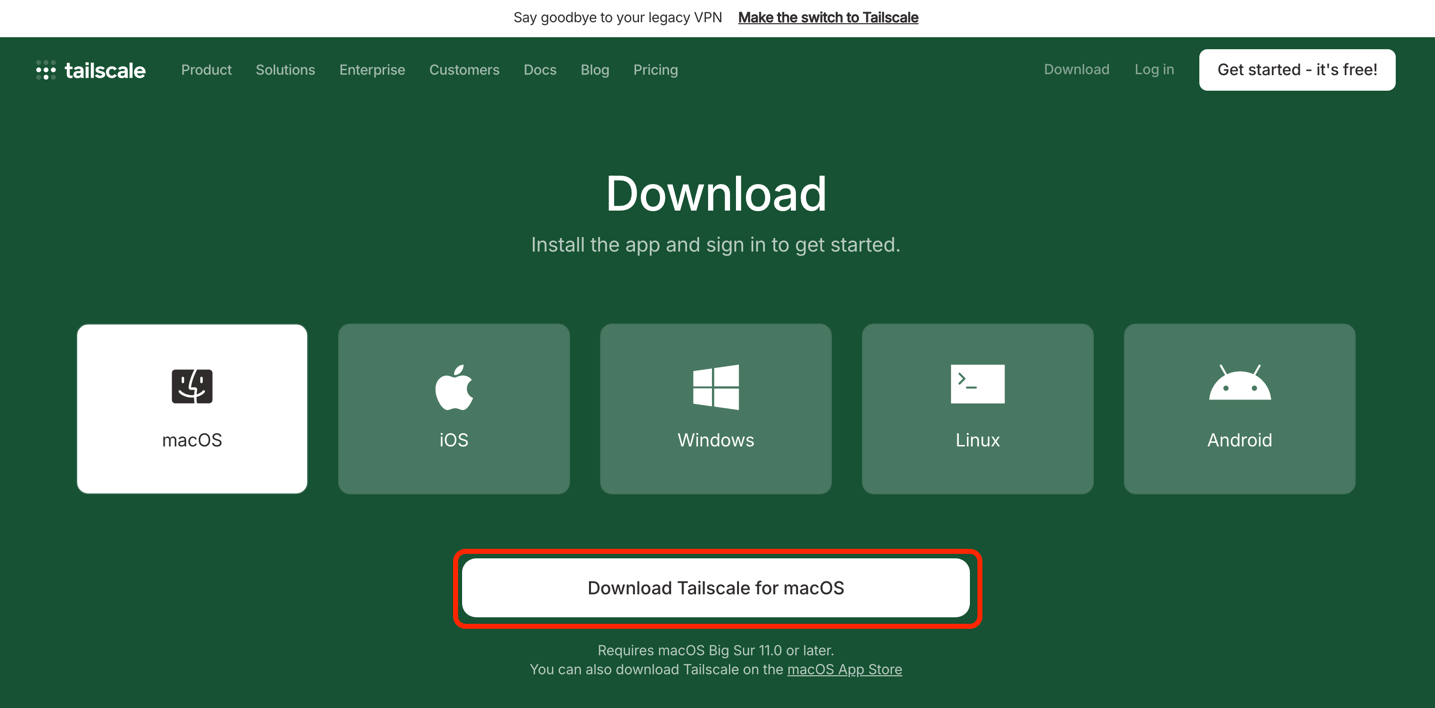
- Visit theTailscale Downloads Page.
- Download the installer for macOS.
- Run the
.pkgfile to complete installation.
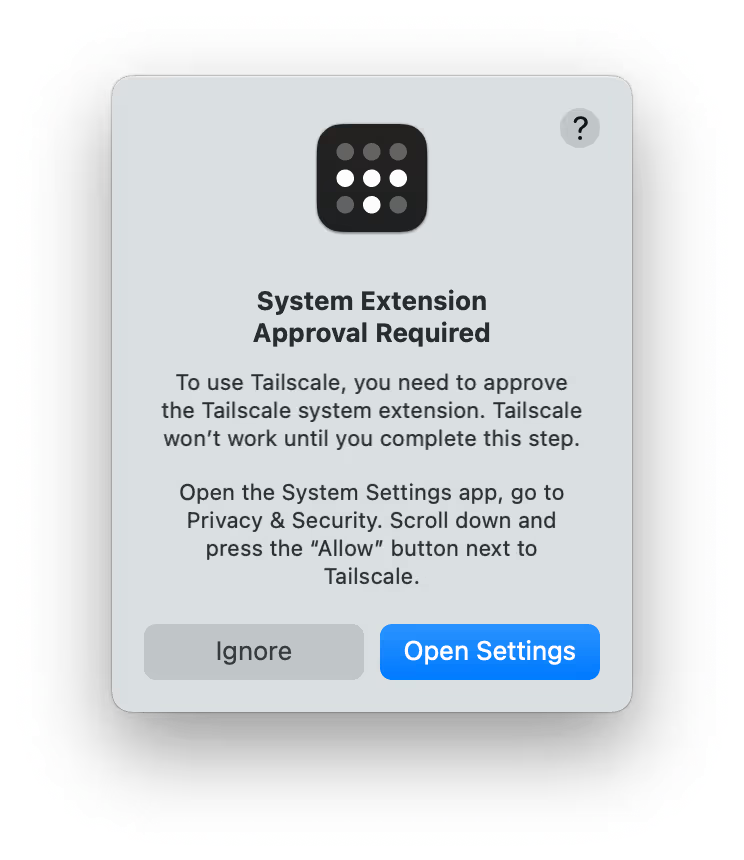
⚠️ (note) Tailscale may not function properly unless you allow the network extension permission. If you see a message like the one below, follow the instructions at this link based on your macOS version.
Verify Installation
- Open Terminal and enter the following command to confirm installation.
tailscale version
VPN Login and Connection
Initial Login Setup
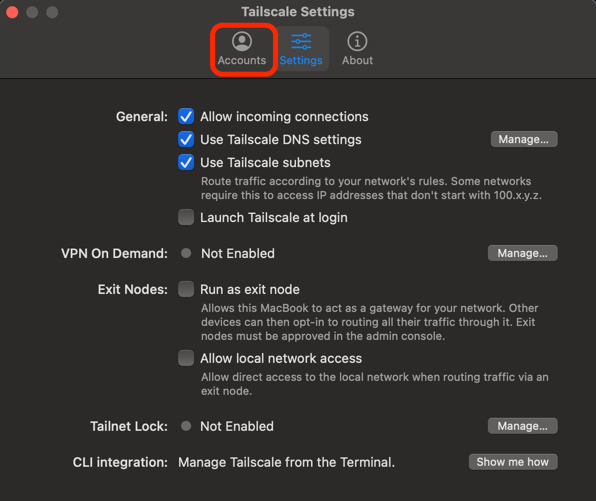
- Open Tailscale and go to Tailscale Settings (
cmd + ,), then select the Accounts tab.
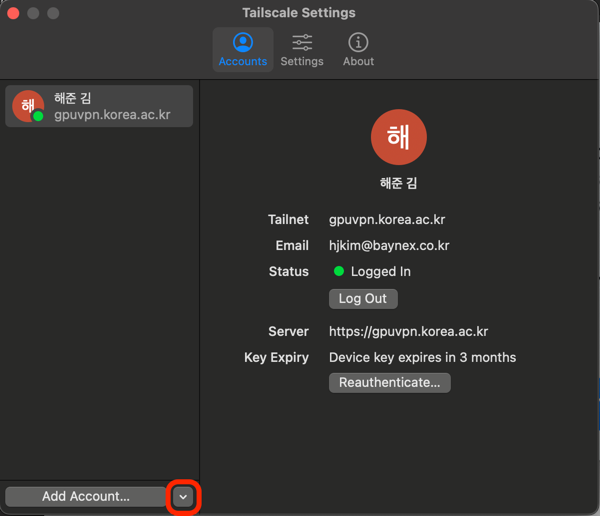
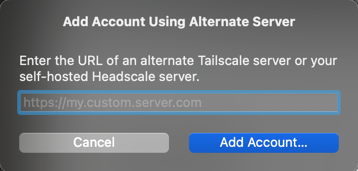
-
Enter the email address you wish to register for VPN use.
-
Next, open Terminal and run:
tailscale login --login-server=https://gpuvpn.korea.ac.kr --accept-routes
- A browser window will automatically open with a login URL (or you can click the link shown in the terminal).

- When prompted, log in with your Korea University Microsoft account.
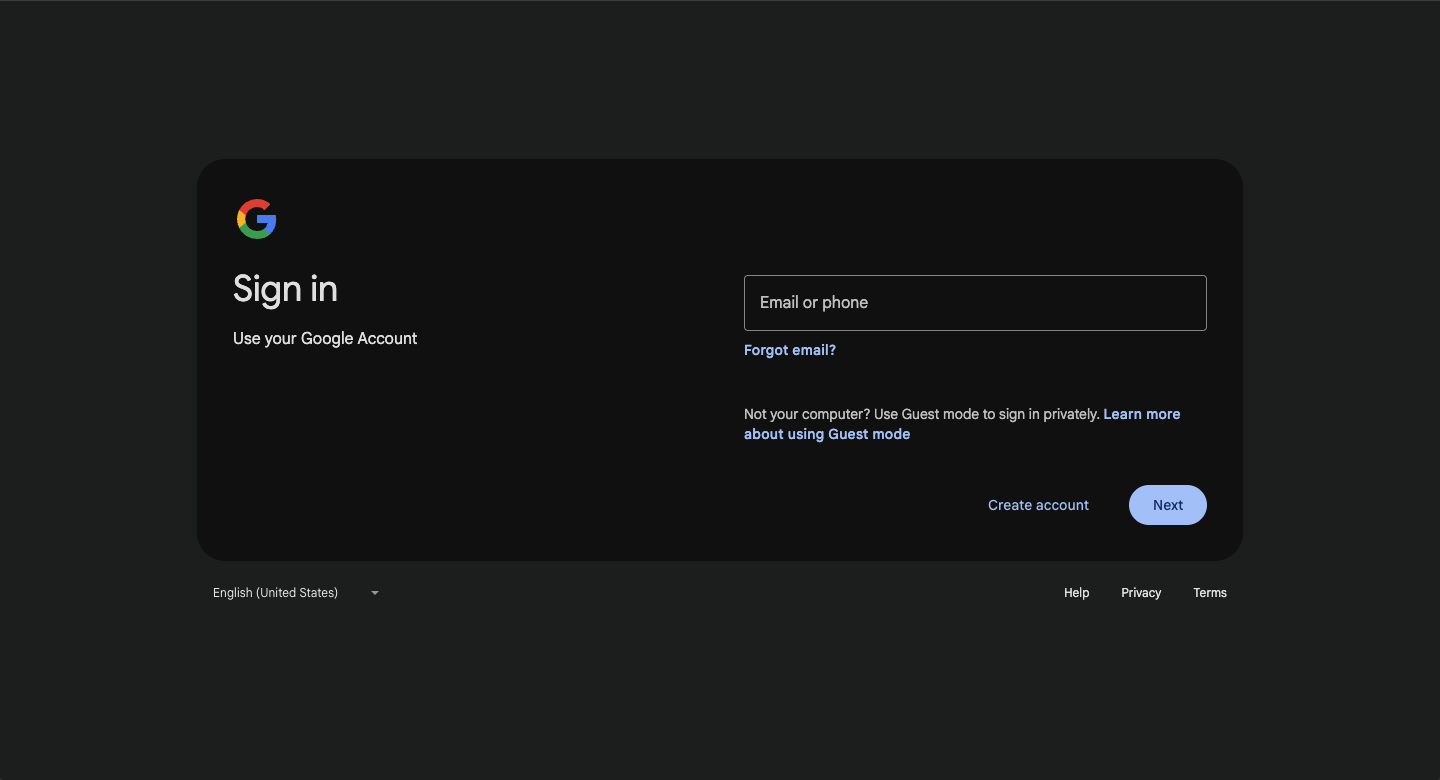
- Once login is successful, you’ll see a confirmation screen like the one below.
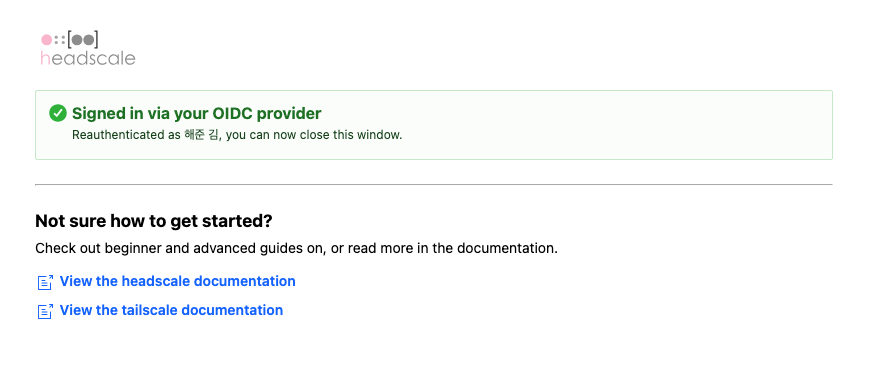
주의) Do not run tailscale up directly. If you do, you may see the following screen, and you will not be connected to the GPU Cloud.
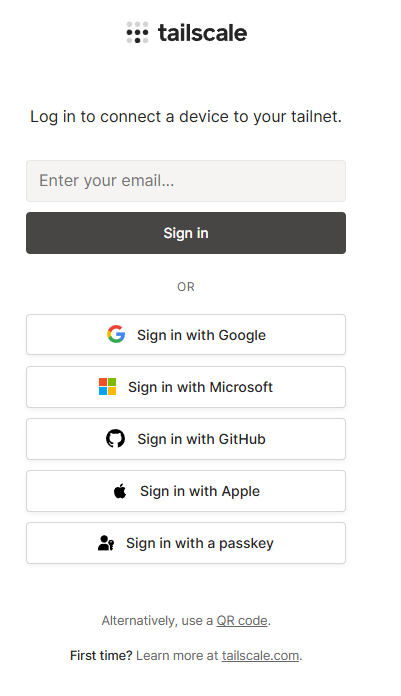
You must first run
tailscale login --login-server=https://gpuvpn.korea.ac.kr --accept-routes
to ensure correct login and connection to the GPU Cloud VPN.
Managing VPN Connection
tailscale status- Check VPN connection status and view connected devices and IP addresses.tailscale down- Disconnect the VPN.
If VPN Connection Fails
- If you are unable to connect
- Run
tailscale downto disconnect. - Re-run
tailscale login --login-server=https://gpuvpn.korea.ac.kr --accept-routesto log in again properly.